
This guide sets up a workflow that authenticates against the Telia Smart Connect Integrator API, retrieves the members currently logged in to each queue, and stores their status as Units in your Bosbec account.
The queue id is saved as a tag on each logged-in member. This makes it possible to build further automation on top of the data, for example sending an SMS to whoever is currently logged in to a specific queue.
For example:
- Send an SMS to all agents logged in to a support queue when a high-priority ticket comes in.
- Build a dynamic group per queue that always reflects who is currently logged in.
- Trigger alerts or notifications based on queue staffing levels.
What you will build
| Part | Description |
|---|---|
| Authenticate trigger | Logs in to the Telia Smart Connect Integrator API and stores the session on the workflow |
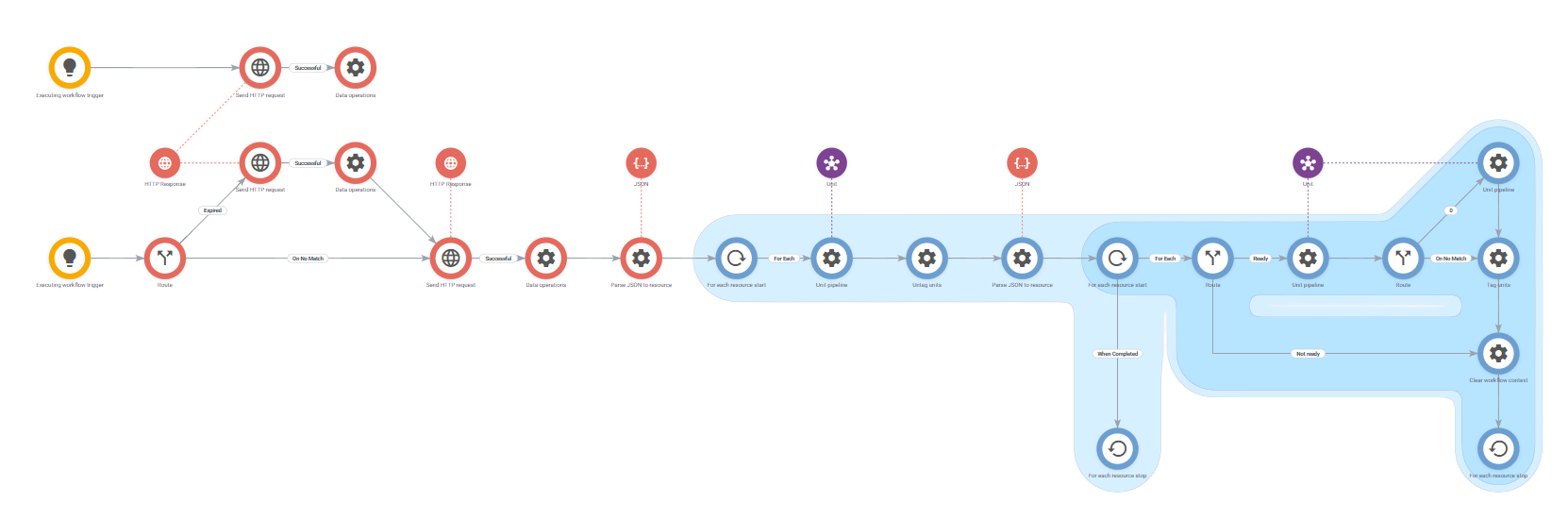
| Get queues trigger | Retrieves all queues and, for each queue, the members currently logged in |
| Queue loop | Loops through every queue returned by the API |
| Member loop | Loops through the members of each queue and tags the ones who are logged in |
Before you start
- A Telia Smart Connect account with access to the Integrator API.
- Your Telia Smart Connect username and password.
Import the workflow
Open Workflow Builder and navigate to View > Workflow Library.
Under Templates, find and import the template named Telia Smart Connect: Get Logged In Members.
Configure the Telia Smart Connect secrets
In Workflow Builder, open Edit > Workflow Settings and select Custom Settings & Secrets.
Add the following secrets:
| Key | Value |
|---|---|
| tsc_username | Your Telia Smart Connect username |
| tsc_password | Your Telia Smart Connect password |
Both values are found in Telia Smart Connect. Keep them as secrets rather than entering them directly in an HTTP request job.
How it works
Authenticating and reusing the session
The Authenticate trigger calls the Integrator API login endpoint using tsc_username and tsc_password. On a successful response, the workflow saves the returned sessionId and an expiry date on the workflow's own metadata.
Storing the session on the workflow itself, rather than in the workflow context, means the value is still available the next time the workflow runs, so the workflow does not have to authenticate on every execution.
Getting queues and refreshing the session
The Get queues workflow checks the expiry date stored on the workflow. If it is older than three days, or missing, the workflow authenticates again before continuing.
The job then calls the /queues endpoint using the current session. Because every successful call to /queues extends the session on the Telia Smart Connect side, the workflow overwrites the expiry date on the workflow metadata after each successful call. This keeps the stored expiry date in sync with the actual session lifetime, instead of expiring a session that is still valid.
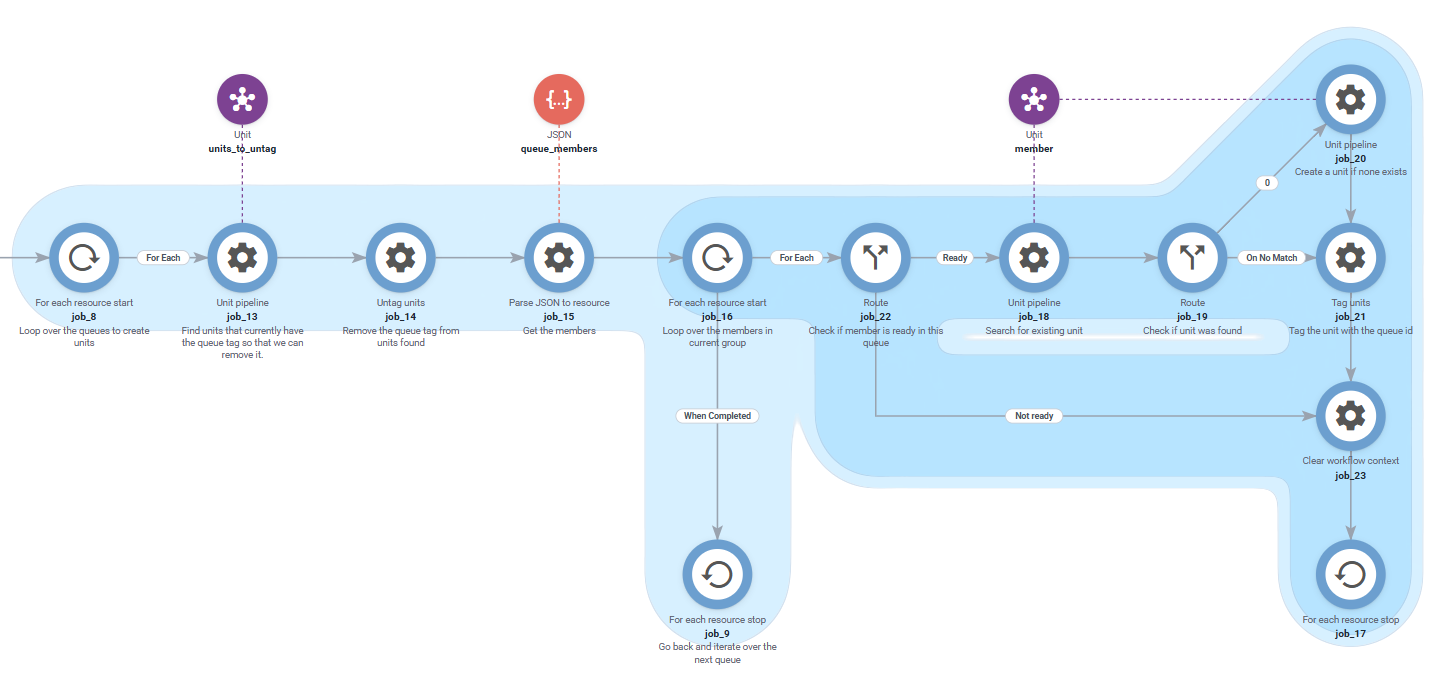
Looping through queues and members
The workflow uses two nested loops:
- Queue loop - iterates over every queue returned by
/queues. - Member loop - iterates over the members returned for the current queue.
An HTTP response from Telia Smart Connect contains queue information and a list of queue members. For example, a queue can look like this:
{
	"customerId": 12345,
	"queueId": "12345_Support",
	"description": "Support",
	"shortnumber": "",
	"hidden": false,
	"members": [
		{
			"personId": 98765,
			"firstname": "John",
			"lastname": "Doe",
			"number": "+46700000001",
			"type": "MOBILE",
			"ready": 1,
			"priority": 1
		}
	]
}
The queueId field is used as a tag on the Unit. The workflow checks the ready field for each member and only adds the tag when its value is 1.
The Create Unit step stores the member information on the Unit, including the person's name and phone number. The queue id is saved as a tag so you can use it when selecting members for later automation.
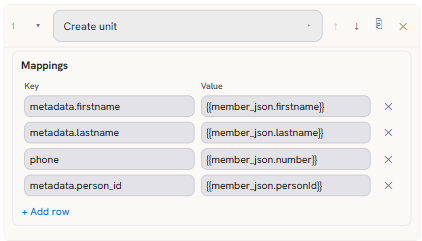
The Create Unit step stores the member data and queue tag on the Unit.
Before processing the members of a queue, the workflow searches your account for all Units tagged with that queue's id and removes the tag from all of them. This clears out members who are no longer logged in before the current list is applied.
The workflow then loops through the member list. Any member whose ready value is 1 gets the queue id added back as a tag on their Unit. Members who are not ready stay untagged for that queue.
Because the queue id is only present as a tag while a member is actually logged in and ready, you can rely on the tag to reflect the current state without tracking removals separately.
Test it
Manually run the Authenticate trigger, then the Get queues trigger. After execution, open the Units section of your Bosbec account and confirm that logged-in members are tagged with the corresponding queue id.
| Status | Likely cause |
|---|---|
401 from Telia Smart Connect |
tsc_username or tsc_password is missing or incorrect |
| Session expires unexpectedly | The expiry date was not updated after a successful /queues call |
| Workflow stops partway through | The Max Job Execution Limit in workflow settings is too low for the number of queues and members being processed |
Because the workflow can loop through many queues and members, you may need to increase the Max Job Execution Limit under workflow settings.
Extend the solution
Once queue members are tagged, you can reuse the same pattern as with Dstny ACD groups:
- Save Dstny ACD groups and agents to your Bosbec account shows how to keep Units in sync with an external source.
- Send SMS to logged-in agents in a Dstny ACD group shows how to build a dynamic group from tagged Units and send them an SMS.
Build a dynamic group per queue that picks up Units tagged with that queue id, then use it to notify whoever is currently logged in.
Because staffing changes throughout the day, schedule this workflow to run at a regular interval, for example every 30-60 minutes, to keep the tags in sync with Telia Smart Connect.