
This workflow provides a starting point for exporting Bosbec units as subscribers to Rule.
You can modify the request to include additional subscriber information, tags, fields, or other options supported by the Rule API documentation.
Import the workflow
Open Workflow Builder and navigate to View > Workflow Library.
Under Tutorials, find and import the template named “Rule: Export subscribers”.
If you created your account using the button on this page, you may already have selected this template when launching Workflow Builder and can skip this step.
Add your Rule API key
Before running the export, you need an API key from your Rule account.
Once you have generated an API key, open the workflow settings and add it under Account Secrets using the following key:
rule_api_key
Test the workflow
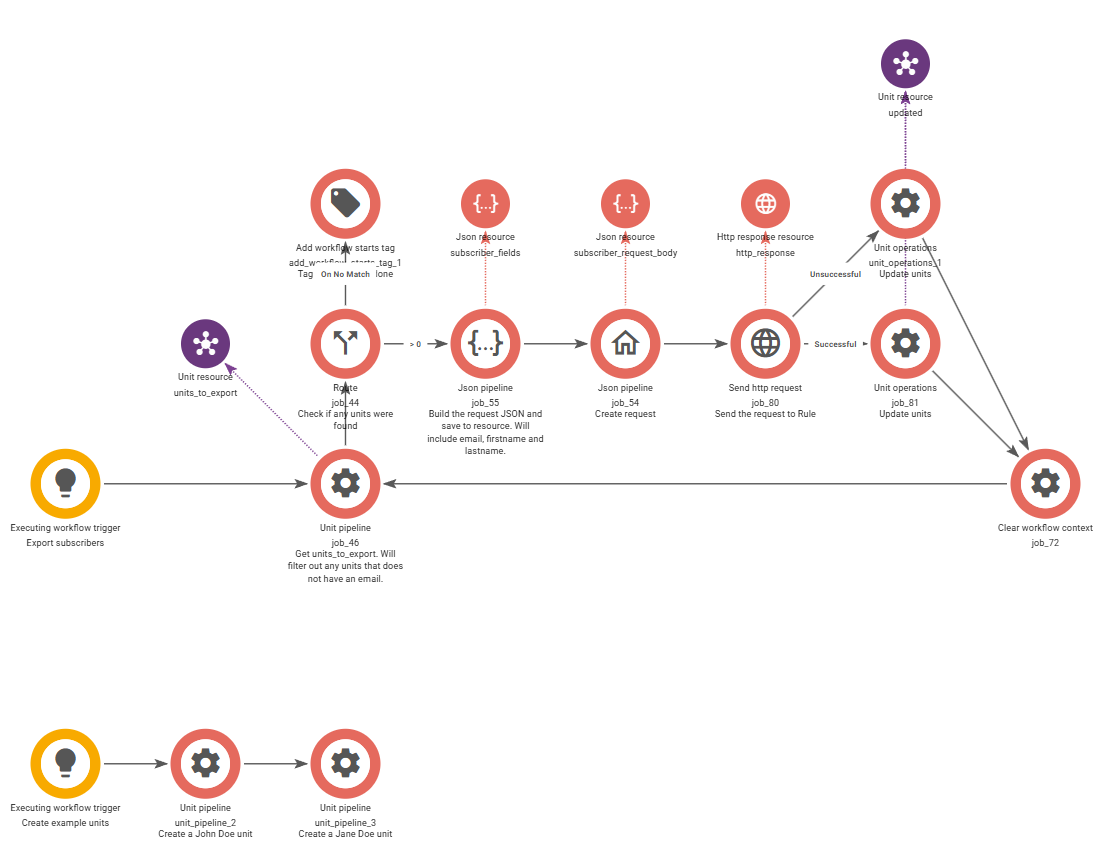
A demo flow is included at the bottom of the workflow.
Run this part first to create two example units on your Bosbec account. The units contain the metadata required by the export process:
rule_unit = true
to_be_exported = true
The units also contain example email addresses, first names, and last names.
After the demo units have been created and your Rule API key has been added, run the export flow.
The workflow should find the two units and create or update them as subscribers in Rule.
How the export works
The export process begins by searching for units that have both rule_unit = true and to_be_exported = true.
Units without an email address are filtered out before the Rule request is made.
The matching units are then processed individually and sent to Rule using the Create subscriber endpoint:
POST https://app.rule.io/api/v2/subscribers
In this example, the request contains the subscriber’s email address, first name, and last name.
Rule supports additional subscriber fields, tags, language settings, automation options, and other properties. Refer to the Rule API documentation when extending the request.
Successful exports
When a unit has been exported successfully, the workflow updates the unit with:
to_be_exported = false
It also saves a timestamp indicating when the unit was last exported or updated.
Setting to_be_exported to false prevents the unit from being included again until another process marks it for export.
Failed exports
If the request to Rule fails, the error message is saved on the corresponding unit.
This makes it possible to inspect failed exports or build a separate workflow that:
- Finds units containing export errors
- Sends notifications
- Corrects or enriches the unit data
- Retries the export
The exact error returned by Rule depends on the request. For example, Rule may reject a request because of invalid authentication, missing required information, invalid field formatting, or rate limiting.
Build your own Rule integration
Once the example is working, you can connect the export flow to other processes on your account.
For example, another workflow could create or update a unit and set:
rule_unit = true
to_be_exported = true
The export workflow can then be run on a schedule or triggered as part of a larger process.
You can also expand the Rule request with additional fields, tags, preferences, or automation settings depending on how subscribers should be managed in your Rule account.