
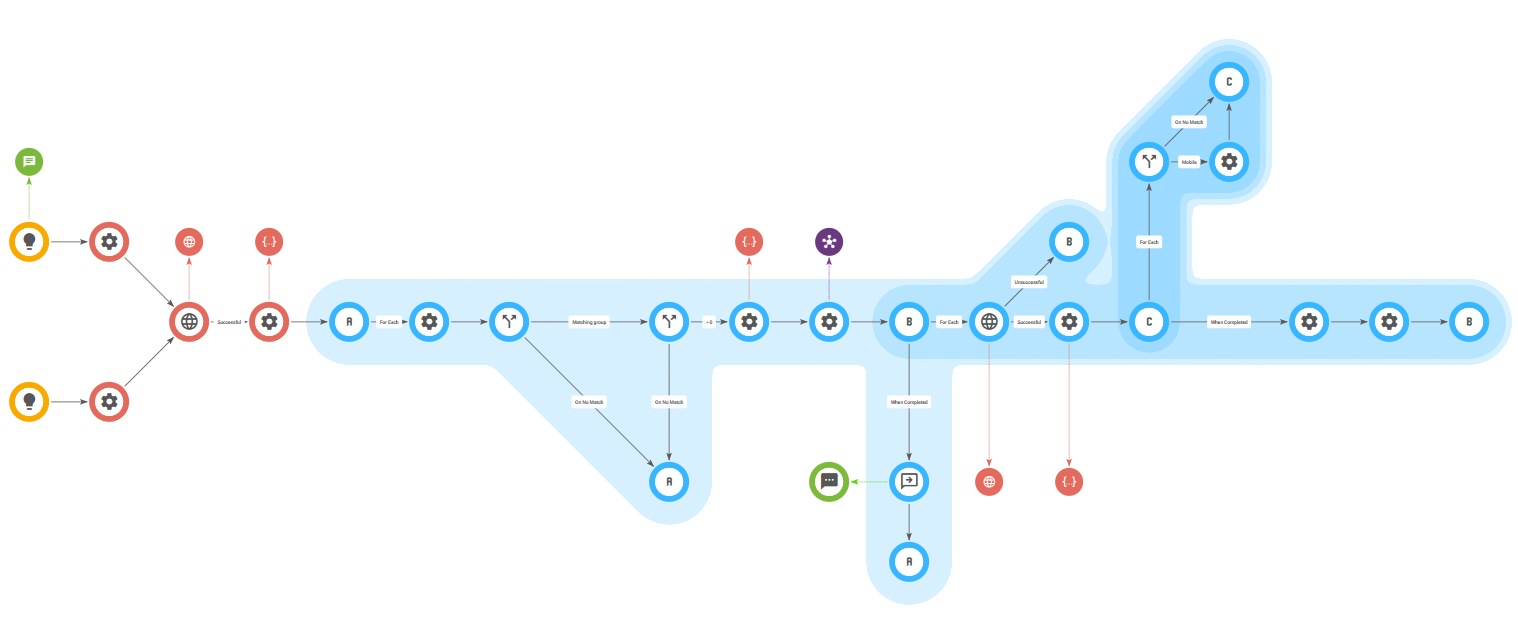
This guide explains how to receive an incoming SMS and automatically forward it to all agents currently logged in to a specific Dstny ACD group.
The workflow includes a built-in test trigger, allowing you to verify that everything works before connecting an incoming SMS number.
Import the workflow
Open Workflow Builder and navigate to View → Workflow Library.
Under Tutorials, you will find the template named “Dstny: SMS to ACD group”.
If you created your account using the button on this page, you may already have selected this template when launching Workflow Builder and can skip this step.
Configure the Dstny connection
In the Bosbec Admin Panel, navigate to Settings → Account Settings.
Under Account, configure the following settings:
| Key | Value |
|---|---|
| dstny_top_domain | For example: www.dstny.se |
| dstny_customer_domain | Your Dstny customer domain, for example yourcompany.se |
| dstny_connecting_user | User ID of your Dstny user.. |
| dstny_token | Your Dstny API token |
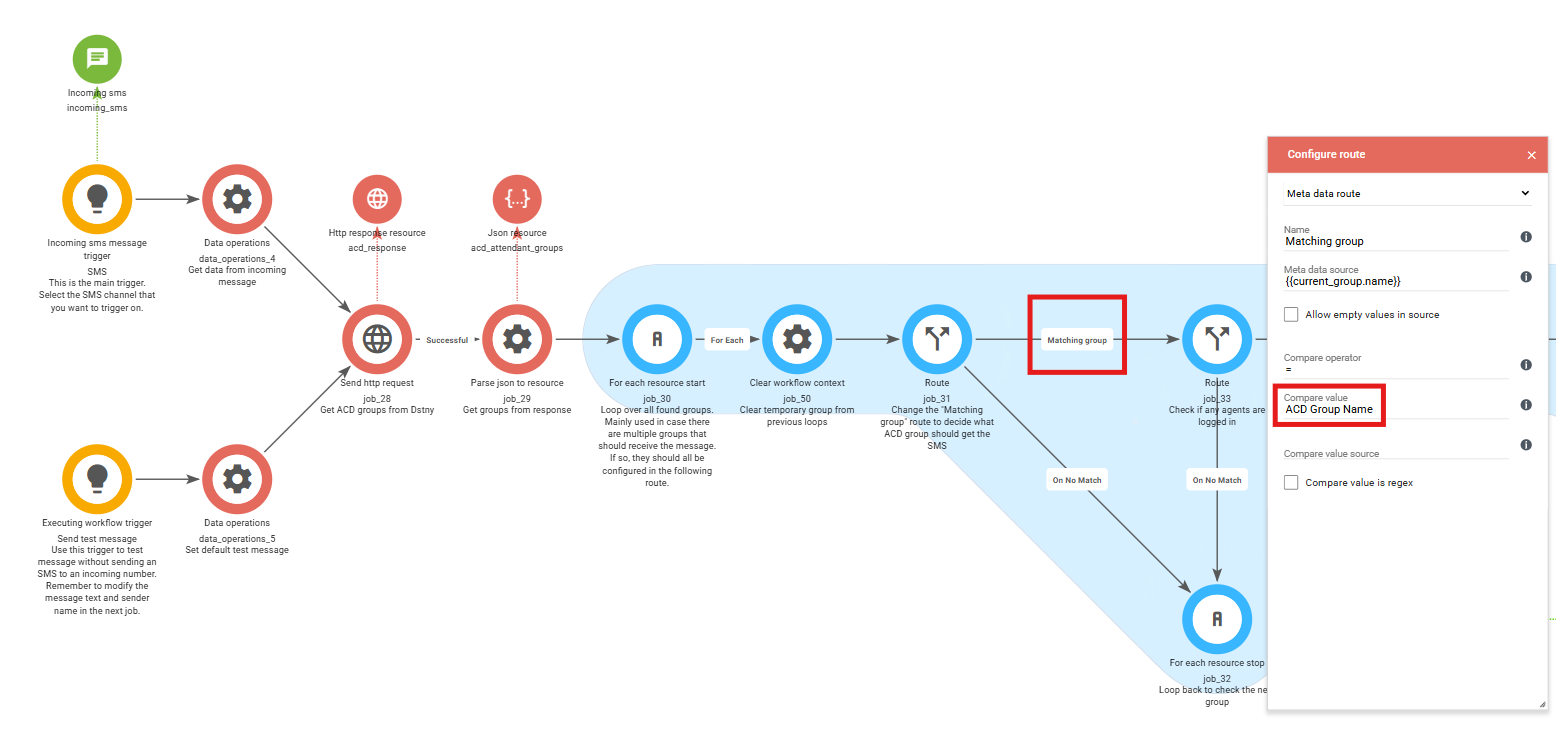
Next, open the Matching group route in the workflow and configure it to match the name of the Dstny ACD group that should receive SMS notifications.
The group name must exactly match the name of the ACD group in Dstny.
Test the integration
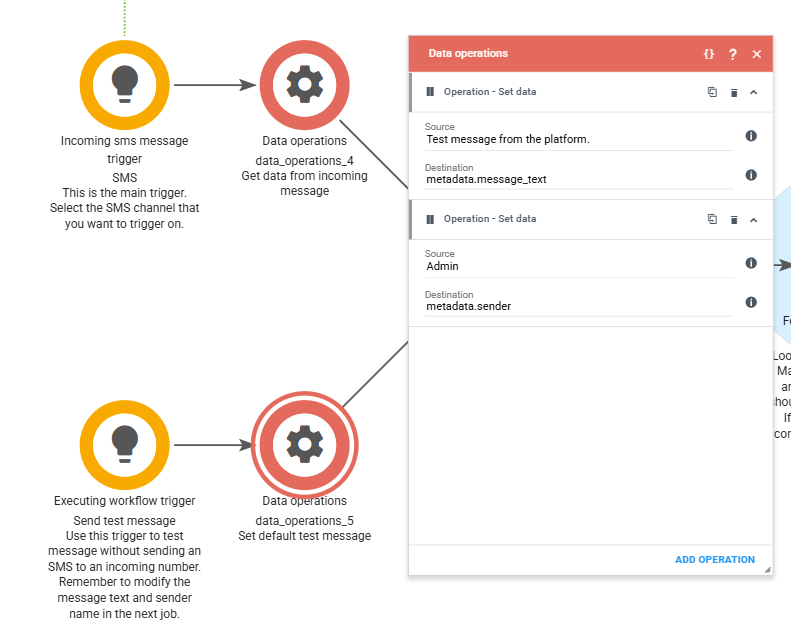
Once the configuration is complete, you can test the workflow by manually triggering the Send test message trigger.
During execution, the workflow will:
- Look up the configured ACD group.
- Retrieve all agents currently logged in to that group.
- Collect their mobile phone numbers.
- Send the SMS message configured in the first Data Operation job to each logged-in agent.
Configure the SMS Channel
To receive incoming SMS messages, your Bosbec account must have an SMS Channel configured with an incoming phone number.
If you have already configured an SMS Channel, open the SMS trigger in the workflow and select it from the available channels. Save the workflow.
If you do not yet have an SMS Channel, you can still test the workflow using the Send test message trigger described above.
Once you are ready to receive live SMS messages, contact Bosbec, and we will provision an incoming SMS number for your account. After the channel has been created, simply select it in the SMS trigger and enable the workflow.
Next steps
This workflow can easily be adapted for other notification scenarios.
For example, you could:
- send scheduled reminder messages,
- notify on-call staff at specific times,
- integrate with a heartbeat workflow to alert agents about system outages,
- send notifications based on business events or custom workflows.
Because the workflow simply resolves the currently logged-in members of an ACD group, it can be reused wherever dynamic SMS notifications are needed.