
This guide explains how to import your Dstny ACD groups and their agents into your Bosbec account as Units.
The workflow retrieves all available ACD groups from Dstny, creates or updates the corresponding Units, and removes Units for agents who are no longer available in Dstny.
Once imported, the groups and agents can be used by other workflows and integrations in your Bosbec account.
Import the workflow
Open Workflow Builder and navigate to View → Workflow Library.
Under Tutorials, you will find the template named “Dstny: Create units from ACD groups”.
If you created your account using the button on this page, you may already have selected this template when launching Workflow Builder and can skip this step.
Configure the Dstny connection
In the Bosbec Admin Panel, navigate to Settings → Account Settings.
Under Account, configure the following settings:
| Key | Value |
|---|---|
| dstny_top_domain | For example: www.dstny.se |
| dstny_customer_domain | Your Dstny customer domain, for example yourcompany.se |
| dstny_connecting_user | User ID of your Dstny user. |
| dstny_token | Your Dstny API token |
Once these settings have been added, the workflow is ready to be tested.
Test the integration
Open the workflow and manually run the Import agents from ACD trigger.
During execution, the workflow retrieves your ACD groups and processes each group, agent, and available phone number.
Once the execution has completed, open the Units section of your Bosbec account to verify that the groups and agents have been imported.
How the workflow imports ACD groups and agents
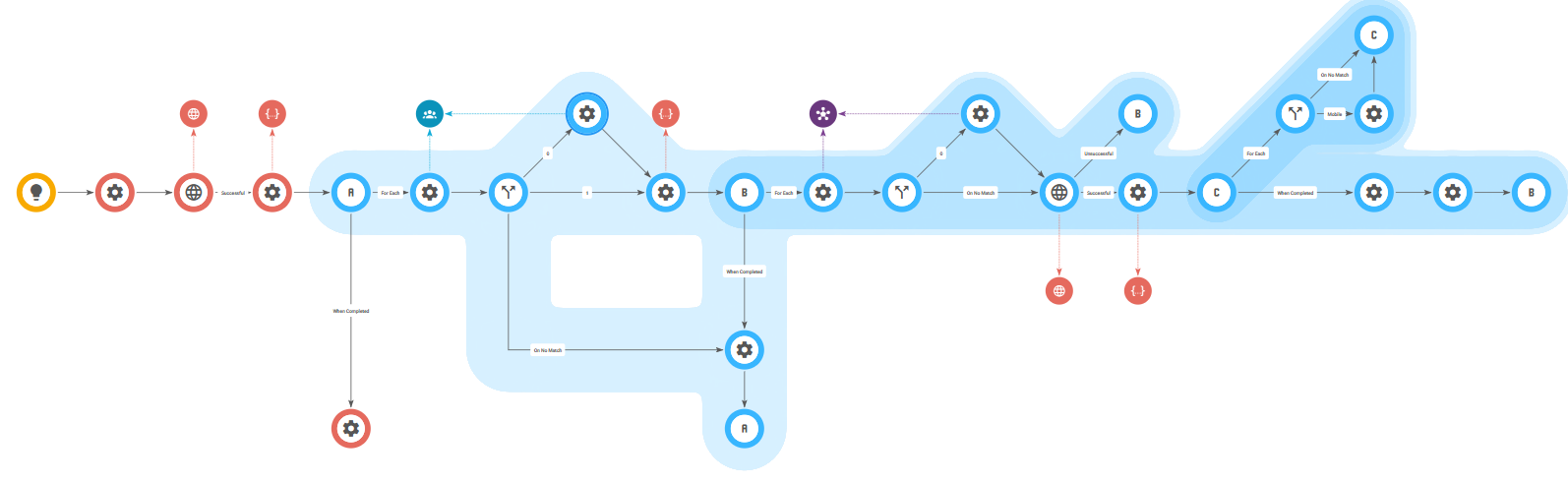
The workflow begins by making a request to Dstny to retrieve all available ACD groups.
It then uses three nested loops to process:
- each ACD group (loop A),
- each agent in the group (loop B),
- each phone number associated with the agent (loop C).
Importing ACD groups
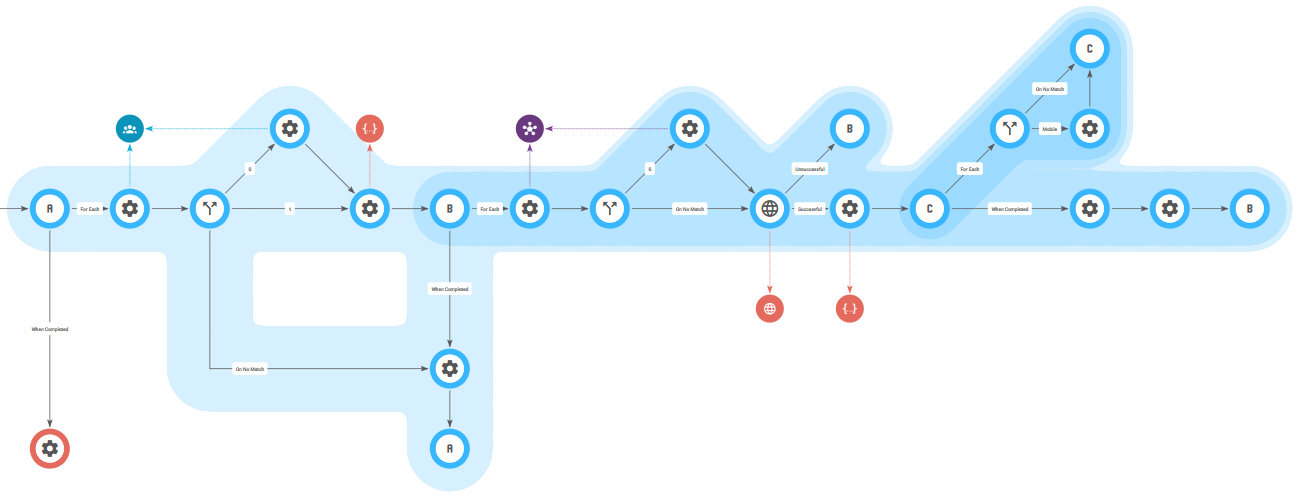
Each ACD group is processed individually.
The workflow searches the Bosbec account for an existing Unit with the same name as the ACD group. If no matching Unit is found, a new one is created.
Importing agents
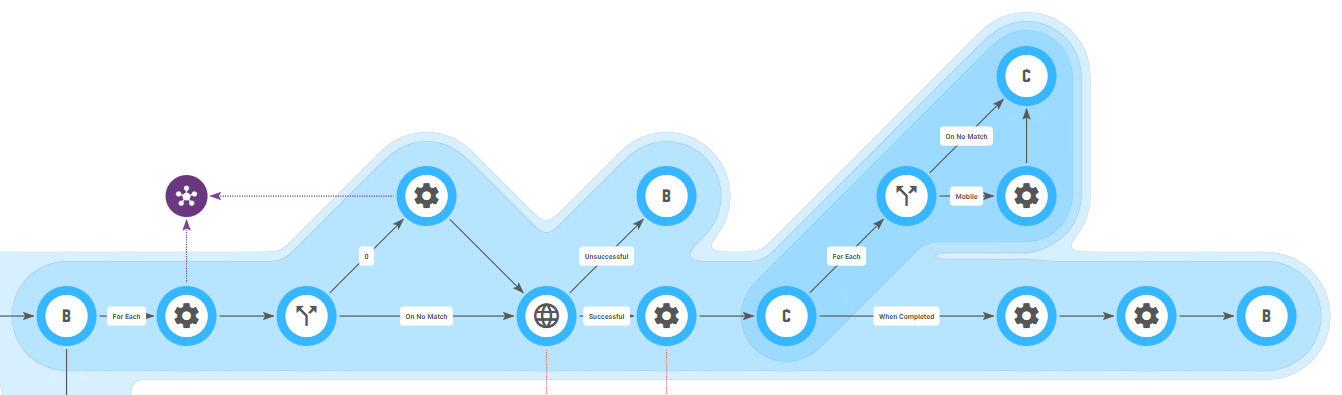
For each ACD group, the workflow retrieves the agents associated with that group.
It searches the account for an existing Unit whose user ID matches the Dstny agent’s user ID. If no matching Unit exists, a new one is created.
Saving mobile phone numbers
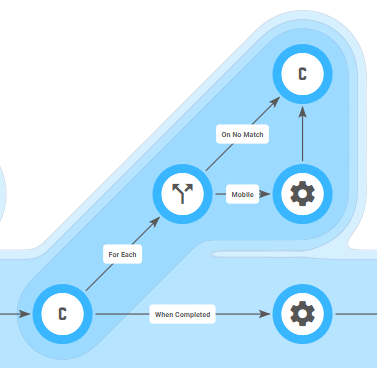
The workflow loops through all phone numbers available for each agent.
When it finds a phone number where the type is mobile, it stores that number on the agent Unit. If the agent has multiple mobile numbers, the last matching mobile number returned by Dstny is saved.
This process is repeated for all agents in all ACD groups.
Removing agents that no longer exist in Dstny
All agent Units imported by this workflow are assigned the following metadata:
acd_unit = true
At the beginning of each import, the workflow finds all Units where acd_unit is set to true and adds the following metadata:
To_be_deleted = true
When an agent is found during the Dstny import, To_be_deleted is changed to false for that agent’s Unit.
After all ACD groups and agents have been processed, the workflow removes any imported agent Units where To_be_deleted is still set to true.
This ensures that agents do not remain permanently stored in the Bosbec account after they have been removed from Dstny.
Next steps
The workflow can be run manually whenever you need to update the ACD groups and agents stored on your account.
As a next step, you can add a scheduled trigger to run the import automatically at regular intervals. This keeps the Units in your Bosbec account synchronized with the current ACD configuration in Dstny.