
Build and run your first workflow in Workflow Builder. You will start it manually, use a job to store Hello World!, and inspect the result in interactive mode.
This example uses just two parts: a trigger that starts the workflow and a job that performs an action. No template is needed; you will build the workflow from scratch.
Step 1: Create a blank workflow
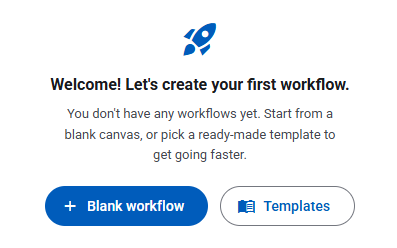
Open Workflow Builder. When prompted to start with a blank workflow or a template, choose Blank.
Step 2: Name the workflow
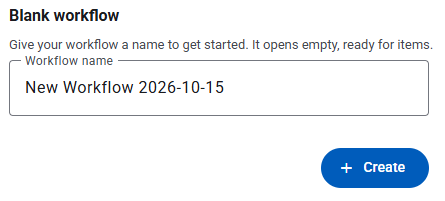
Give your workflow a name, such as Hello World.
Step 3: Add a trigger
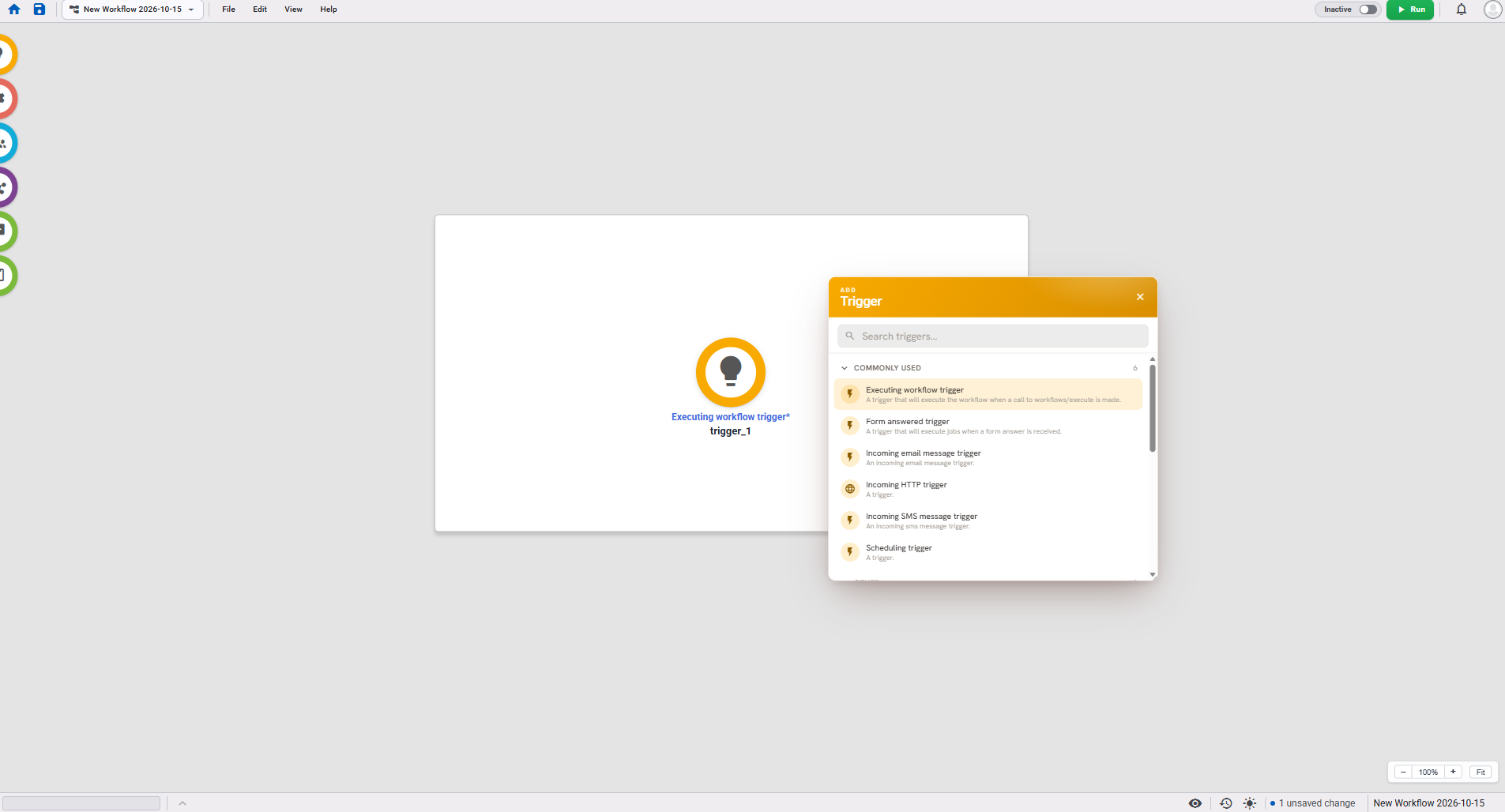
The workflow area is where you place and connect the parts of your workflow. Drag a trigger from the toolbox on the left and drop it onto the workflow area. You can also right-click an empty part of the area and select Add trigger.
Choose Executing workflow as the trigger type. This lets you start the workflow manually from Workflow Builder.
Step 4: Add and connect a job
Drag a job from the toolbox onto the workflow area, just as you did with the trigger, and choose Data operations. You can also right-click the workflow area and select Add job.
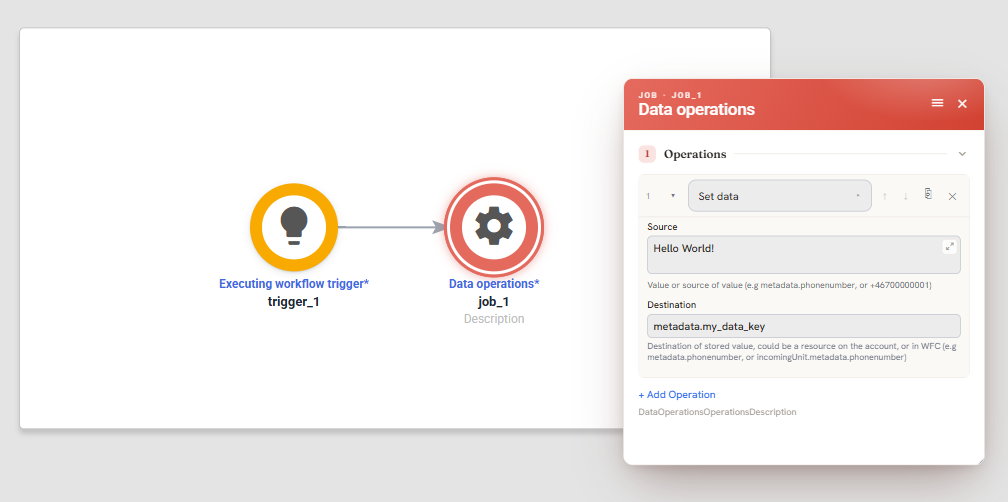
Connect the trigger to the job by hovering over the trigger's colored border and dragging a connection to the job. This connection tells the workflow which job to run when the trigger starts it.
Open the job's properties by double-clicking it. Select the Set data step and enter these values:
| Field | Value |
|---|---|
| Source | Hello World! |
| Destination | metadata.my_data_key |
The step stores the text in my_data_key within the current run's metadata. Metadata holds data in the workflow context, where jobs can read and update it during the run.
Step 5: Save the workflow
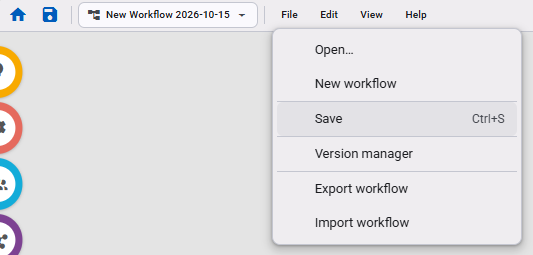
Select File > Save to save your workflow.
Step 6: Activate the workflow
Use the toggle in the top-right corner to activate the workflow. The workflow must be active before you can run it.

Step 7: Run the workflow
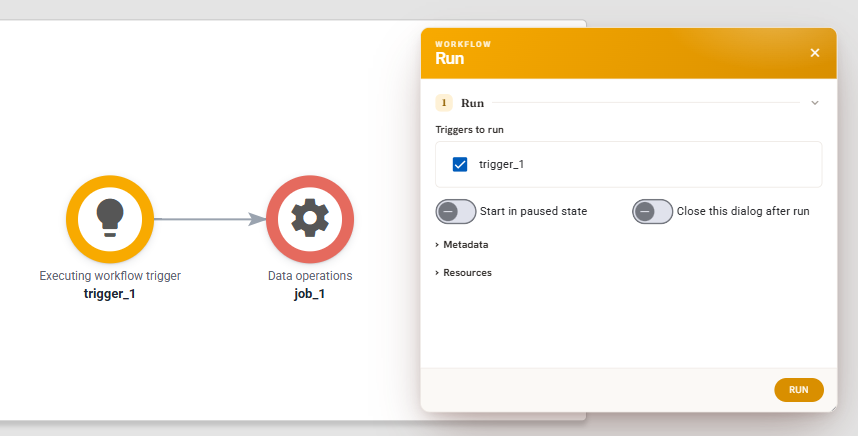
Click Run next to the activation toggle to open the run dialog. Here you can choose which trigger to start. This workflow has only one trigger, so select it and click Run in the dialog.
Step 8: Follow the execution path
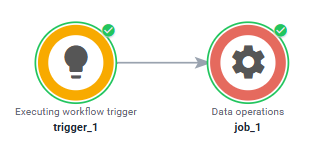
After the workflow runs, the trigger and job show green markings. These indicate that both ran without errors. The highlighted path shows how the run moved from the trigger to the job.
Step 9: Find the run in Workflow Starts
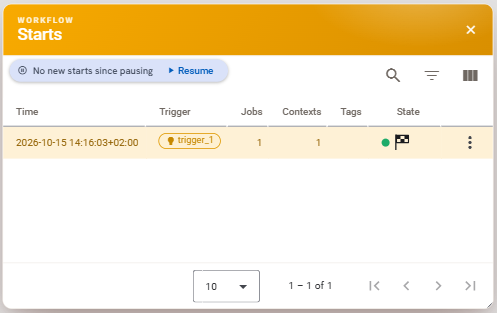
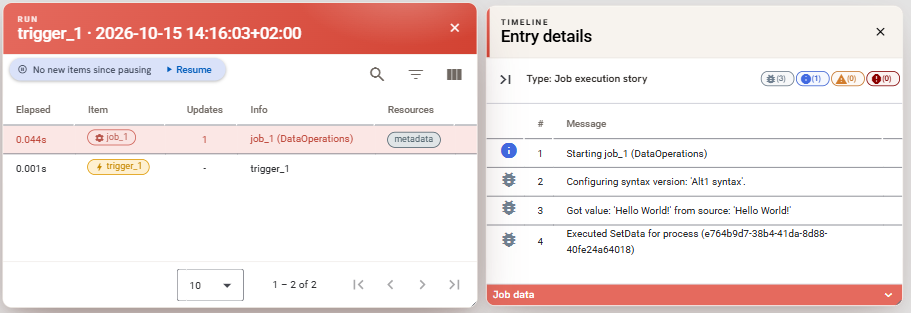
Several inspection windows open after you run the workflow. Workflow Starts lists the workflow's runs. For this new workflow, you should see only the run you just started.
Click the run to open it in interactive mode. If the window is not visible, open it through View > Workflow Starts and select the run there. Interactive mode lets you inspect that specific run, including its execution path, timeline, and resources.
Step 10: Inspect the job in the timeline
The Timeline window shows which jobs ran, how long they took, and which resources they used.
Click the Data operations job in the list to open its entry and inspect what it did. In this example, the Set data step shows that the job stored Hello World! at metadata.my_data_key.
Step 11: Check the metadata in Resources
The Resources window shows the resources available in the run. In this example, only the user and metadata are available.
Click metadata to open its contents and inspect the data stored in the workflow context. Confirm that my_data_key has the value Hello World!.
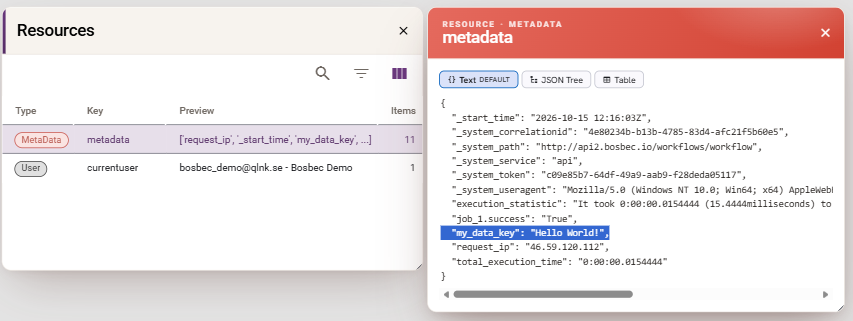
You have now created, connected, saved, activated, and run a minimal workflow, then verified its result in interactive mode. If the value is missing, check the job's source and destination, confirm that the trigger is connected to the job, and save and run the workflow again.
Where to go next
Continue with Understand the Bosbec Platform for a short overview of workflows, jobs, workflow context, units, groups, and channels before making your first API call.
For more ways to inspect a run, see Debugging workflows using interactive mode.