
This guide demonstrates how to use Bosbec Workflow Builder to receive sales data from an external system, transform it into the format required by Personalkollen, and send it to the Personalkollen Sales API.
The integration can be used with data from POS systems, e-commerce platforms, or other systems that generate sales transactions.
Personalkollen’s complete Sales API documentation is available in their Sales integration documentation.
How an integration works
A typical integration consists of three main steps:
- Receive sales data from the source system.
- Transform the incoming data into Personalkollen’s sales structure.
- Send the transformed sales data to the Personalkollen Sales API.
A basic workflow may look like this:
External system → HTTP-in → Transform data → Personalkollen API
For more advanced integrations, Bosbec units can also be used to store incoming orders, prevent duplicates, track processing status, and retry failed exports.
Personalkollen authentication
Personalkollen uses an authentication secret for each workplace.
The secret can be found in Personalkollen under:
Inställningar → Arbetsplatser → Nyckel till kassakoppling
When making requests to Personalkollen, include the secret in the Authorization header:
Authorization: Token <workplace-secret>
When sending JSON, also include:
Content-Type: application/json
Personalkollen supports both JSON and XML, so specifying the correct content type is important.
The Sales API endpoint is:
https://personalkollen.se/api/v1/sales/
Sales are submitted using HTTP POST.
Mapping your sales data
Different POS and e-commerce systems use different data structures. One of the main purposes of the workflow is therefore to map the incoming data to Personalkollen’s sales format.
Depending on the source system, this may include information such as:
- A unique sale or order ID
- Date and time of the sale
- Staff member handling the sale
- Cash register or counter
- Sales location
- Payment method
- Products and quantities
- Product prices and VAT
- Product groups
Personalkollen uses unique IDs extensively. Whenever possible, use stable IDs from the source system for sales, products, staff, counters, and other entities.
The unique sale ID is especially important since it allows Personalkollen and your workflow to identify individual transactions.
Creating a basic integration
In the simplest setup, the external system sends a webhook to Bosbec whenever a sale is completed.
Start by creating an HTTP channel under My Channels and add an Incoming HTTP trigger to your workflow.
If you are new to creating HTTP endpoints in Workflow Builder, see Building Your First API and Channels – Incoming.
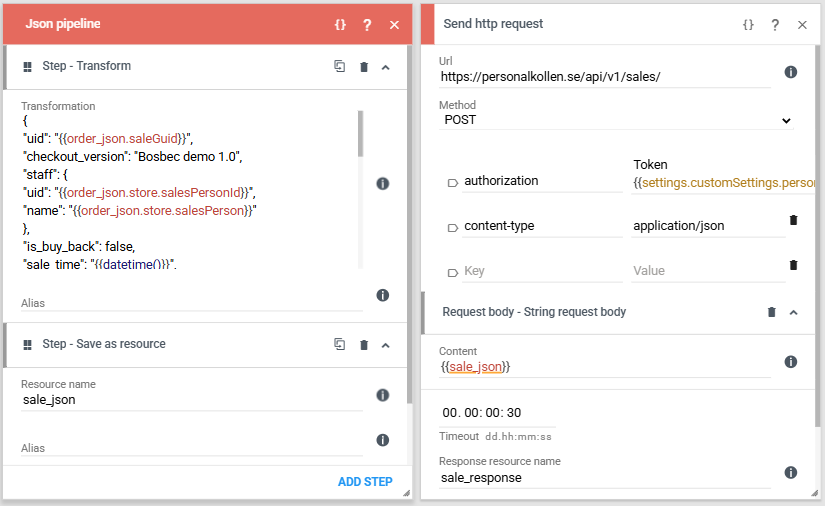
The incoming request can then be transformed using a JSON Pipeline.
For example, data received from the source system can be mapped to Personalkollen fields such as:
orderId      → uid
createdDate  → sale_time
employee     → staff
register     → counter
paymentType  → payments
orderLines   → items
The exact mapping will depend on the system you are integrating with.
After creating the Personalkollen JSON structure, send it using an HTTP request to:
POST https://personalkollen.se/api/v1/sales/
with the Personalkollen authentication and content type headers.
Responding to the source system
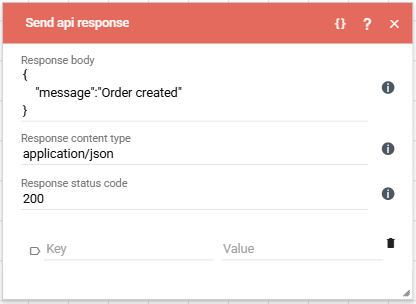
When using a webhook, it is normally a good idea to respond to the source system as soon as the request has been received and processed.
Use a Send API Response job to return an appropriate HTTP response.
For example:
200 OKwhen the webhook was successfully received and processed400 Bad Requestwhen the incoming request could not be processed
The HTTP channel can also be configured with an automatic response and a timeout.
Securing the incoming endpoint
An Incoming HTTP trigger can either be public or require Bosbec API authentication.
If Public is enabled, anyone with access to the endpoint URL can make a request.
If it is disabled, the request must contain a valid Bosbec API token in the Authorization header.
Bosbec API tokens can be created under Administrator Tools in Bosbec Admin.
For integrations with external systems, using authentication is recommended whenever the source system supports custom HTTP headers.
Handling duplicate sales
For production integrations, it is useful to keep track of sales that have already been received.
The same order may occasionally be sent more than once, for example if the source system retries a webhook after a timeout.
One way to prevent duplicate processing is to create a Bosbec unit for each incoming sale.
Store the source system’s unique sale ID as metadata, for example:
metadata.salesId
At the beginning of the workflow, use a Unit Pipeline to search for a unit with the same salesId.
If a matching unit already exists, the workflow can stop processing the sale.
If no matching unit exists, create a new unit and continue with the integration.
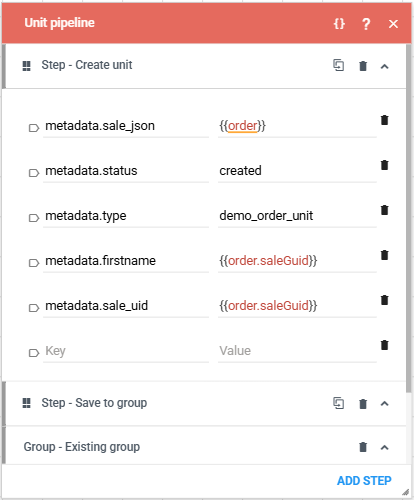
This also gives you a resource that can be used for logging and monitoring the order throughout the workflow.
Formatting dates and decimal values
Personalkollen expects dates in ISO 8601 format.
For example:
2026-08-14T10:30:00Z
If the date received from the source system uses another format, it can be converted using a Data Operation job and the Modify date operation.
Personalkollen also requires a dot as the decimal separator.
Correct:
149.50
Incorrect:
149,50
If the source data contains commas, you can convert the value before sending it to Personalkollen, for example using a Data Operation with Replace.
Logging the integration
The unit created for each sale can also be used to track its processing status.
For example:
metadata.status = "received"
When the sale has successfully been sent to Personalkollen:
metadata.status = "exported"
If the export fails:
metadata.status = "error"
Additional information such as response codes, timestamps, or error messages can also be stored as metadata.
This makes it possible to build separate workflows for monitoring or retrying failed sales.
A Unit Pipeline can be used at any point to retrieve and update the unit.
Units can either be kept within the current workflow session or saved to the account so that other workflows can access them.
Handling errors
Personalkollen returns different HTTP status codes depending on the result of the request.
A successful sale import returns:
201 Created
Common errors include:
400 Bad Request
The submitted data does not match Personalkollen’s specification.
401 Unauthorized
The authentication secret is missing or invalid.
For temporary errors, such as server or network problems, the sale should normally be retained and retried later.
You can also add a Send message to group job to notify administrators when an error requires manual attention.
For example, create a group containing the people responsible for the integration and send them an email when an order receives an unexpected error.
Integrating multiple systems
The same Personalkollen integration can receive data from several systems, such as a POS system and an e-commerce platform.
There are two common ways to structure this.
You can create a separate workflow for each source system. This is straightforward when the integrations differ significantly.
Alternatively, you can use a shared workflow and add a route that identifies the source system.
For example:
POS ───────────┐
               ├─→ Common Personalkollen structure → Personalkollen API
E-commerce ────┘
Each route handles the source-specific transformation before joining the common part of the workflow.
When storing sales as units, it is also useful to save the source system:
metadata.source = "pos"
or:
metadata.source = "ecommerce"
This allows sales from different integrations to be distinguished later.
Handling high volumes
For integrations that may receive a large number of sales within a short period, it can be useful to separate receiving the data from exporting it to Personalkollen.
Instead of sending the sale to Personalkollen immediately, the incoming workflow can:
- Receive the webhook.
- Validate the incoming data.
- Save the sale as a unit.
- Return a response to the source system.
A separate scheduled workflow can then:
- Find units waiting to be exported.
- Send each sale to Personalkollen.
- Mark successful sales as exported.
- Keep or mark failed sales for retry.
The architecture then becomes:
External system
      ↓
HTTP-in
      ↓
Store sale as unit
      ↓
Respond to source system

Scheduled workflow
      ↓
Find pending sales
      ↓
Personalkollen API
      ↓
Update status
This approach has several advantages. The external system receives a fast response, temporary problems with Personalkollen do not affect the incoming webhook, and failed sales can be retried independently.
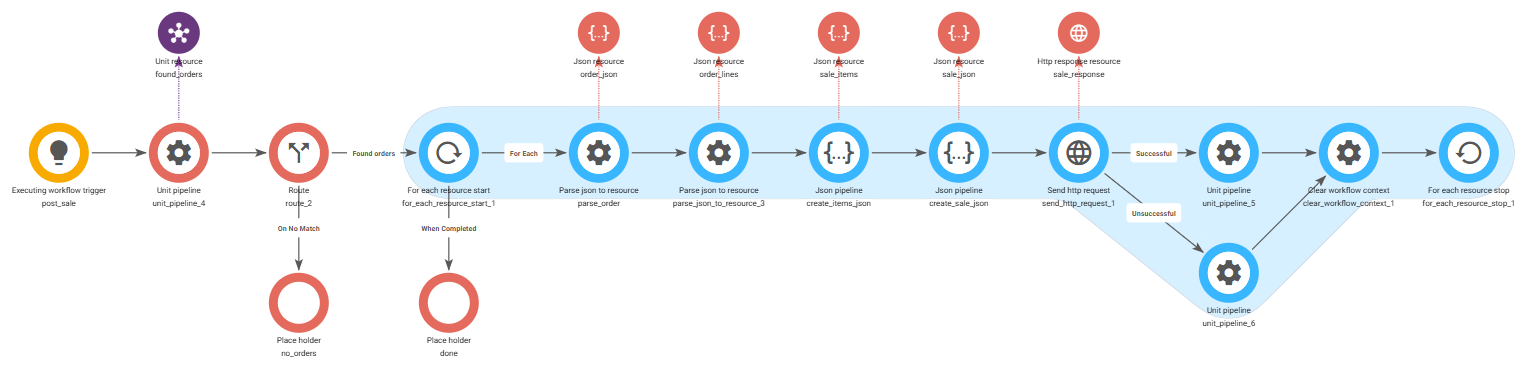
We have created a template for this in the workflow library to get you started.
In the workflow builder, go to "View"->"Workflow Library" and search for "Personalkollen". You should find "Personalkollen: Export Sales Data", click use this template.
Choosing an integration design
The appropriate setup depends on the requirements of the integration.
A direct webhook-to-Personalkollen workflow may be sufficient when:
- Sales volumes are relatively low.
- Only one source system is involved.
- The source data closely matches Personalkollen’s structure.
- Limited retry and monitoring functionality is required.
Using units as an intermediate storage layer is recommended when:
- Duplicate detection is important.
- Sales need to be logged.
- Failed exports need to be retried.
- Multiple source systems are involved.
- You want to monitor the status of individual sales.
For higher-volume integrations, separating the incoming and outgoing processing into different workflows provides additional reliability and control.
More on building your own integration in Bosbec can be found on Getting started: Integrations