
Bosbec workflows connect events, actions, and data. This overview introduces the building blocks you will meet when building a solution, with links to more detailed articles when you need them.
If you followed Your first workflow, you have already used several of these concepts: a trigger started your workflow, a job stored Hello World!, and you inspected the result in the workflow context.
Background reading: JSON, HTTP, and APIs
Bosbec's integration guides use JSON, HTTP requests, and APIs. The guides focus on how to use these in Bosbec rather than teaching the underlying standards. If any of these topics are new to you, these external resources from MDN Web Docs can help:
- What is an API? introduces how software interacts through an interface.
- HTTP requests and responses covers URLs, methods such as GET and POST, headers, request bodies, and response status codes.
- JSON basics explains objects, key-value pairs, arrays, and syntax rules.
Workflows
A workflow defines a process: when it starts, which actions it performs, and how those actions connect. You build it visually in Workflow Builder by connecting triggers and jobs.
A workflow is the saved definition; a run is one execution of that definition. The same workflow can run many times, with different data in each run. For example, an order-processing workflow can start once for each incoming order.
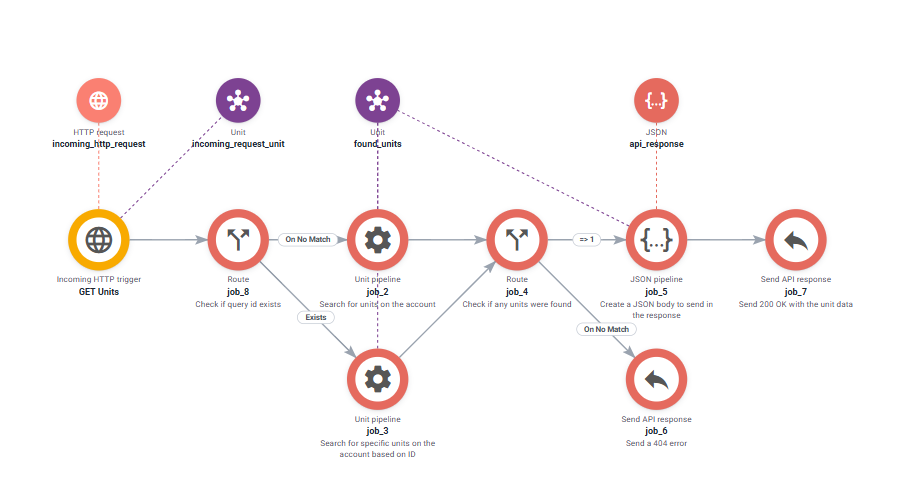
Triggers
A trigger defines when a workflow starts. It can respond to an incoming request or message, a schedule, or a manual start from Workflow Builder.
In the first workflow, the Executing workflow trigger let you start the workflow yourself. In an integration, a trigger might instead start the workflow when another system sends an HTTP request.
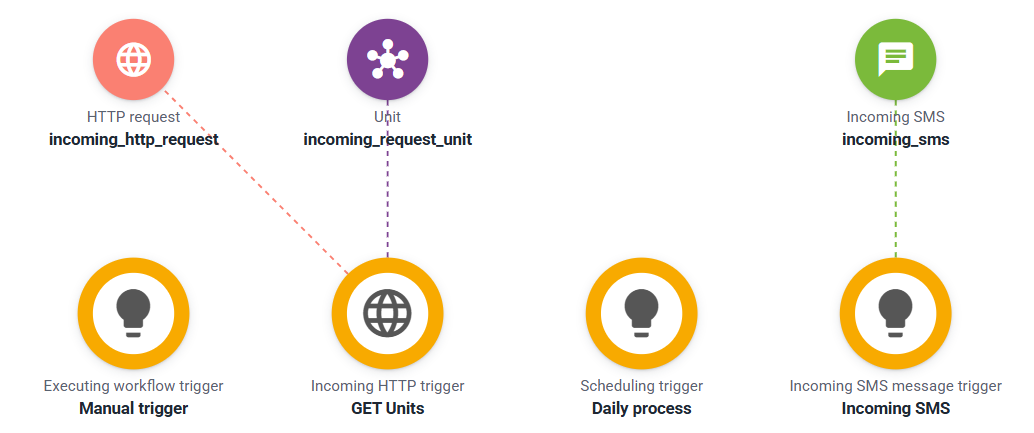
Jobs
A job performs an action in a workflow, such as transforming data, sending a message, making an HTTP request, or choosing which path to follow. Connect jobs to define what happens after a trigger starts the run.
Some jobs contain configurable steps. In the first workflow, the Data operations job used a Set data step to store Hello World!.
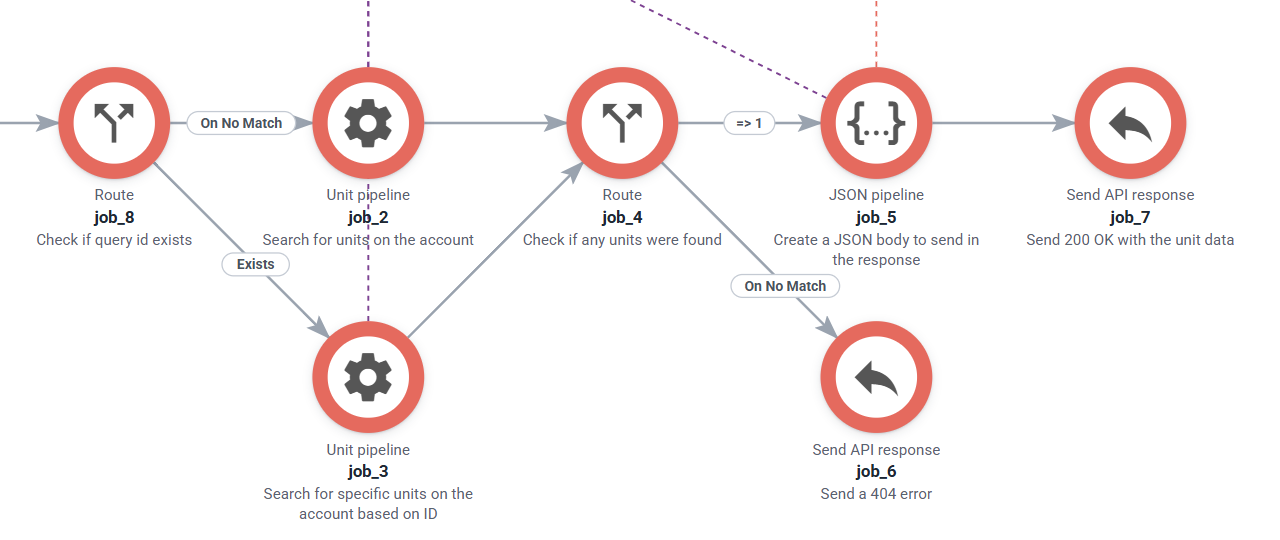
Workflow context
The workflow context, or WFC, is the state, resources, and data available during one run. A trigger makes initial data available, and jobs can read, add, or change data as the run progresses.
Each run has its own context, separate from other runs. Data stored only in this context does not persist after the run finishes. Save data to a persistent resource, such as a unit, when you need it in a later run.
Metadata
Metadata stores data as key-value pairs. In the first workflow, my_data_key was the key and Hello World! was its value. The destination metadata.my_data_key stored that value in the current run's workflow context.
Metadata can also belong to a resource, such as a unit. The distinction matters: workflow context metadata is temporary, while metadata saved on a persistent unit remains available for later use.
Units
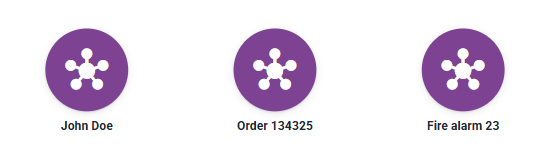
A unit is a flexible way to store data in your Bosbec account. You decide what it represents: a person, an order, a device, or another entity. Its metadata holds the fields your solution needs, such as an order ID and status.
Units are not limited to message recipients. A unit can store business data without a phone number or email address.
Groups
A group is a collection of units. For example, it can hold customers who should receive a notification or products that a workflow needs to process. Groups contain units, not arbitrary resource types.
Account groups persist between runs. Temporary groups exist only in the current run and let jobs work with a collection without saving that group to the account.
Channels
An incoming channel is an entry point through which traffic reaches Bosbec, such as an HTTP endpoint or an email address. The channel receives the traffic; a trigger decides whether that traffic should start a particular workflow.
For example, an HTTP-in channel can receive requests from another system, while a trigger selects requests that match a particular path and method. A workflow started manually or on a schedule does not need an incoming channel for that start.
The word channel is also used for contact details on units, such as phone numbers and email addresses. Those describe how to reach a unit, rather than an incoming entry point for your account.
Putting it together
An order integration might work like this:
- Another system sends an order to an HTTP-in channel.
- A trigger matches the request and starts a workflow run.
- Jobs read the request data from the workflow context and prepare the order fields.
- A job saves the order as a unit, with its fields stored in metadata.
- The workflow adds the unit to an account group of orders awaiting processing.
The request and intermediate values belong to that run. The saved unit and its account group remain available after the run finishes.
To inspect what happened, open the run in interactive mode. The timeline shows what each job did, and the resources window shows the data available in the context.
Inspect a run in interactive mode
Where to go next
Continue by running a workflow through an API request. You can return to the linked concept articles as you encounter each building block in later guides.
For a broader reference, see Terminology.