This guide demonstrates how to populate the Dstny CRM Connect Widget with customer data from your Bosbec account.
The provided workflow searches for a matching Unit based on the caller’s phone number and returns the customer information to Dstny. Since the workflow uses Bosbec Units, you can either create the data manually, generate demo data, or synchronize customer information from your own systems using additional workflows.
The workflow is fully functional using demo data. Once you’re familiar with how it works, you can either customize the Unit information or synchronize customer data from your own systems into Bosbec Units!
Import the workflow
Open Workflow Builder and navigate to View > Workflow Library.
Under Tutorials, you will find the template named “Dstny: CRM Connect Widget”.
If you created your account using the button on this page, you may already have selected this template when launching Workflow Builder and can skip this step.
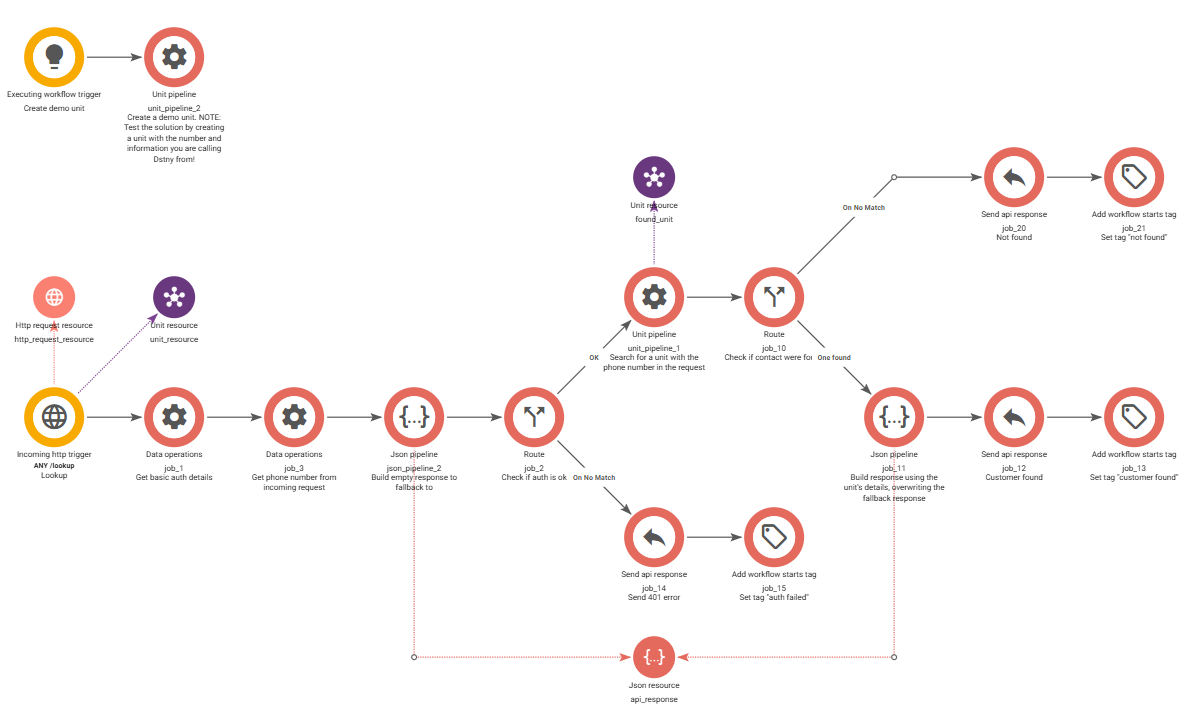
Open the “/lookup” trigger in the main workflow. Create a channel if you have not already done so, then save the workflow.
Under the trigger information, you will now see your endpoint URL. It will look similar to:
https://{subdomain}.in.bosbec.io/lookup
Activate the workflow by enabling the toggle in the upper-right corner.
Generate demo data
The workflow includes a trigger named Create demo unit.
Run this trigger once to create a demo customer in your Bosbec account.
If you want to customize the information displayed in the CRM Connect Widget, edit the Unit Pipeline connected to the Create demo unit trigger. Here you can change fields such as the customer’s name, company, phone number, email address, or add your own custom properties before creating the Unit.
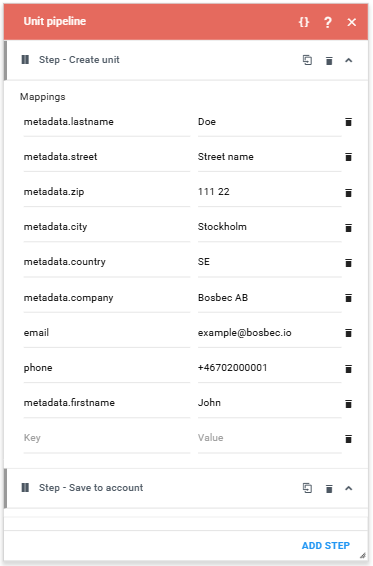
The generated Unit can then be found in the admin portal under Resources and Units.
Configure Dstny CRM Connect
Open the Dstny CRM Connect configuration and choose a username and password.
Configure the endpoint as:
https://{subdomain}.in.bosbec.io/lookup=<number>
Replace {subdomain} with your channel subdomain that you set up in the previous steps.
The <number> parameter is automatically replaced by Dstny with the phone number being looked up.
In the Bosbec admin panel, go to Settings at the top right and select Account Settings. At the bottom left, under Account, enter the data in the table below.
| Key | Value |
|---|---|
| dstny_username_dstny | Configured username in Dstny |
| dstny_password_dstny | Configured password in Dstny |
Test the integration
After configuring the widget, call from the same phone number that exists on your demo Unit.
The workflow will:
- Receive the lookup request from Dstny.
- Search your Units for a matching phone number.
- Return the customer information as JSON.
- Display the result inside the CRM Connect Widget.
If no matching Unit is found, an empty result is returned.
Next steps
This workflow uses Bosbec Units as its data source, but the Units themselves can originate from virtually anywhere.
Many organizations synchronize customer information from systems such as HubSpot, Odoo, Microsoft Dynamics, Salesforce, or their own business systems into Bosbec Units using Workflows.
Once synchronized, the CRM Connect Widget performs fast lookups, while the same customer data can also be reused by other workflows!
If you want to connect directly to a specific CRM instead, see these guides: