
This guide gets the voice bot example answering calls on your own account. It covers the accounts you need, the settings and groups to create, and how to point Vonage at your channel. Allow about half an hour.
If you want to understand how the bot works rather than run it, read Build a Voice Bot with Claude and Vonage instead. This page is the checklist.
What you need first
| Account | What to get from it |
|---|---|
| Bosbec | The account you will import the template into |
| Vonage | An application, a linked phone number, the application ID and the private key |
| Anthropic | An API key for the Messages API |
Both third-party accounts are billable. Vonage charges per minute of call time and for the speech services; Anthropic charges per token. A test call costs cents, not euros, but neither has a free tier that covers production use.
Create the settings and the secret
In the Bosbec admin panel, go to Settings at the top right and select Account Settings.
| Name | Type | Value |
|---|---|---|
vonage_application_id |
Account setting | The application ID from Vonage |
claude_api_key |
Secret | Your Anthropic API key |
vonage_private_key |
Secret | The private key Vonage generated with the application |
Both keys have to be secrets, not account settings. The template reads them as {{settings.secrets.claude_api_key}} and {{settings.secrets.vonage_private_key}}, and a value stored in the wrong place does not fail loudly. The expression resolves to its own text, which is then sent as your API key. You get a 401 from Anthropic and nothing explaining why.
Create the channel
Create an HTTP-in channel on your account, open for any method. Note the subdomain it gets. That is the address Vonage will call.
You do not need to configure the channel anywhere in the workflow. The template reads its own host out of the incoming request, so it works on whatever subdomain you were given.
Create the groups
The bot stores its data as units in two groups:
| Group | Holds |
|---|---|
VoiceBot Customers |
The people allowed to book |
VoiceBot Timeslots |
The appointments available to book |
Those are the names the template ships with, not names it requires. If you create the groups with exactly these names, the template works untouched. If you would rather use your own, or point it at groups you already have, see Using your own groups below, and keep reading here for what the units need to contain.
VoiceBot Customers
One unit per person, with this metadata:
| Field | Example |
|---|---|
firstname |
Anna |
lastname |
Andersson |
personal_number |
199001011234 |
The caller reads their personal number out during the call, and the bot looks it up here. Add a few units by hand to test with, or import them from whatever system already holds your customers.
VoiceBot Timeslots
One unit per bookable slot:
| Field | Example | Notes |
|---|---|---|
appointment_start |
2026-08-25T14:00:00Z |
Use exactly this format |
host_name |
Erik Lindqvist |
First and last name of the person taking the appointment |
client_name |
Left empty; the workflow fills it when the slot is booked | |
status |
available |
Becomes booked after a booking |
Create a handful with status: available and start times in the next few days, so there is something for the bot to offer. In a real setup these would come from whatever holds the real calendar.
Using your own groups
Nothing forces you to use the names above. The workflow looks each group up in a Unit pipeline job, and each of those jobs carries a description saying so:
| Job description | What it looks up |
|---|---|
| Add customers group id or group name | The person calling, matched on personal_number |
| Add timeslots group id or group name | Slots with status: available |
| Update with group id for call units | Where to file the unit created for each call |
Each takes either a group id or a group name, so you can point the workflow at groups you already have rather than creating new ones. What the units must contain does not change. The metadata fields above are what the workflow reads.
The third one is empty in the template. Every call creates a unit, and without a group id there they are not filed anywhere. Fill it in if you want the call history collected in one place; leave it if you do not.
Import the template
Open Workflow Builder and navigate to View > Workflow Library. Under Templates, find and import the template named Voice Bot with Claude and Vonage.
If you created your account using the button on this page, you may already have selected this template when launching Workflow Builder and can skip this step.
Open each of the two HTTP triggers, /answer and /asr, and select the channel you created. Then find the Data operations job right after the /answer trigger and put your greeting in it. That is the line the caller hears first.
Save and make sure the workflow is active when the configuration is complete.
Point Vonage at your channel
In your Vonage application, under Capabilities, turn on Voice and set the URLs to your channel:
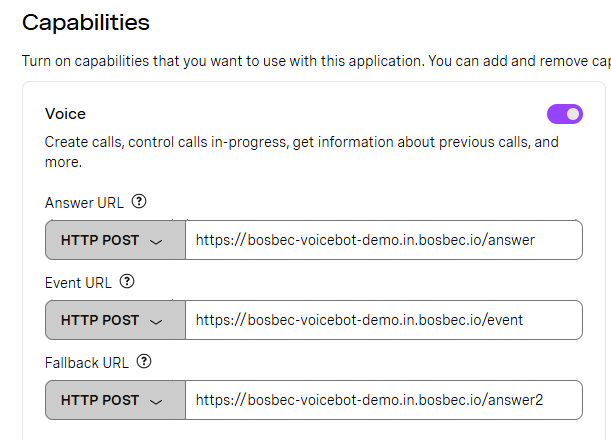
Answer URL and Event URL both point at the channel you created. The paths are what the triggers listen on.
| Field | Method | URL |
|---|---|---|
| Answer URL | HTTP POST |
https://<your-channel>.in.bosbec.io/answer |
| Event URL | HTTP POST |
https://<your-channel>.in.bosbec.io/event |
The Event URL is where Vonage reports call lifecycle events - ringing, answered, completed. This solution does not use them, and the template deliberately has no trigger on /event. The requests still arrive at your channel, but with nothing listening on that path they stop there and start no workflow run.
That is the point of leaving it out. A trigger on /event would start a workflow run for every lifecycle event of every call, which is a lot of runs for information the bot never reads. Add one only if you want the events, to log call duration, say.
Finally, link your phone number to the application, so calls to it reach the answer URL.
Test it
Ring the number. A working call sounds like this:
- The greeting you configured plays.
- You say that you want to book an appointment.
- The bot asks for your personal ID number.
- You read out the
personal_numberof one of your customer units. - The bot greets you by name and offers two of your available slots.
- You pick one. The bot confirms and ends the call.
Then check the slot unit: status is booked and client_name holds the customer's name.
| What happens | Likely cause |
|---|---|
| The call connects, then drops in silence | The channel is not selected on the /answer trigger, or the workflow is not active |
| The greeting plays, then nothing | The /asr trigger is missing the channel |
401 from Anthropic |
claude_api_key is an account setting instead of a secret, or the name is misspelled |
| The bot cannot find you | No unit in VoiceBot Customers with that personal_number, or the group name does not match exactly |
| The bot says there are no times | No units in VoiceBot Timeslots with status: available and a future appointment_start |
| The transfer fails | vonage_private_key is missing, or is stored as a setting rather than a secret |
Follow the call in Workflow Stories before changing anything. Both the request sent to Claude and the reply are in the log, and most problems are visible there.
Extend the solution
- Replace the two groups with lookups against your real customer and calendar systems. Nothing else in the workflow changes.
- Change the greeting, the voice, or the language - the greeting is one Data operations job, the voice is options on the
talkaction. - Add a capability by adding a tool. Build a Voice Bot with Claude and Vonage explains how a tool becomes a route.
Where to go next
Once the example runs, the tutorial is worth reading for the part this page skips: why the conversation has to be resent on every request, and why a tool result goes back to Claude rather than to the caller. Both shape anything you build on top of it.