
When building workflows, issues will inevitably occur. A workflow may not start, data may not be created, or a message may not be delivered.
Effective troubleshooting follows a structured approach. Instead of guessing, move step by step from trigger to outcome.
1. Did the workflow start?
The first question is always: Was the workflow actually triggered?
Open Workflow Starts (under View) and check whether there are workflows started at the expected time.
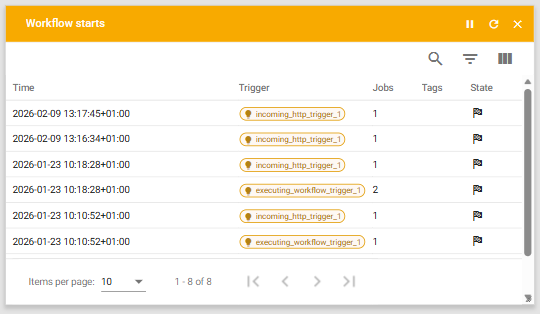
No starts found?
If there are no starts:
- Ensure the workflow is active
- Check that the toggle in the top-right corner is enabled

If the toggle is gray, the workflow is inactive and will not run. Activate it and test again.

If the workflow is active but still not starting, verify:
- The trigger type is correct
- The channel is correctly configured
- The request or event from System A is actually reaching Bosbec
At this stage, the issue is usually related to trigger or channel configuration.
2. Did the workflow run successfully?
If a workflow start exists but the expected result is missing, inspect the workflow context.
Click the start in the history list to see how far the workflow progressed. When a job has been run in the context, it will be opaque. If they have not run, they are slightly transparent.
If a job shows a red icon, it indicates a runtime error.

The flow stops midway
If execution stops before the final job:
- A condition may not have been met
- A delay may be configured
- Required data may be missing
3. Inspect logs and job configuration
To understand what happened during execution:
- Open Workflow Stories to review detailed log entries
- Check error messages for missing fields, invalid formats, or failed API calls
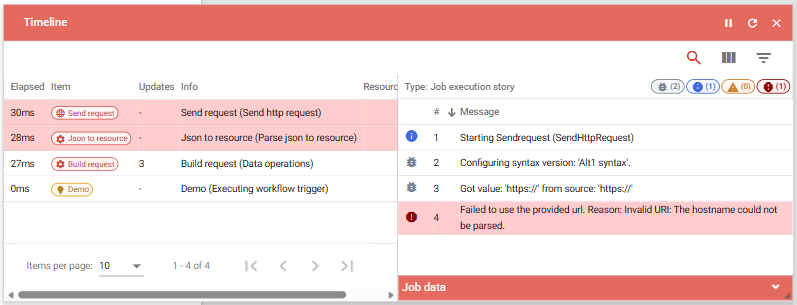
Also, review the job’s properties panel carefully. Some configuration options may not be visible without scrolling. Missing headers, incorrect endpoints, or misconfigured variables are common causes of failure.
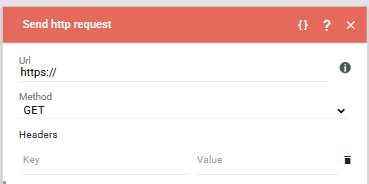
In the example above, the URL had not been entered, and there’s no headers.
4. If the workflow started, but the result is still missing
If all jobs executed successfully and no errors appear in the logs, the issue may lie outside the workflow logic.
At this point, evaluate the expected outcome.
Messages not delivered
If the workflow sends a message (e.g., SMS or email):
- Check Message History under Statistics in the admin panel
- Verify delivery statuses
- Confirm that the recipient information is correct

If the message appears with a negative delivery status, review the status code.
If no message appears at all:
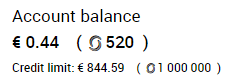
- Check account balance (credit card customers)
- Verify credit limits (invoice customers)
This information is available under Settings in the admin panel.
Units or groups are not visible
If a unit or group appears to be missing:
- Check that it has not been filtered out in the list view
- Review active filters in the top-right corner

5. Review account-level logs
If the issue cannot be identified within the workflow itself, check the Account Log under:
Administrator Tools → Account Log

This may reveal permission issues, authentication errors, or system-level problems.
6. When to contact support
If you have:
- Verified that the trigger fires
- Confirmed that the workflow executes
- Reviewed logs and job configuration
- Checked delivery status or unit creation
- Reviewed account-level settings
…and the issue still persists, it is appropriate to contact support.
When reaching out, include:
- The name of the workflow
- Time of the failed execution
- Screenshots of errors (if any)
- A description of the expected vs actual behavior
Providing precise information significantly reduces resolution time!
You can contact support via the Contact Us form on the help pages or through the help center in the admin panel.