
The Parse CSV to Resource job parses CSV-formatted text provided in the Csv source field. The source can be either:
- A direct CSV string input
- A reference to an existing resource (e.g., incoming message data or metadata)
If parsing succeeds, a CSV Resource is created in the workflow context and can be accessed in subsequent jobs.
Properties
Below is a complete description of all configurable fields.
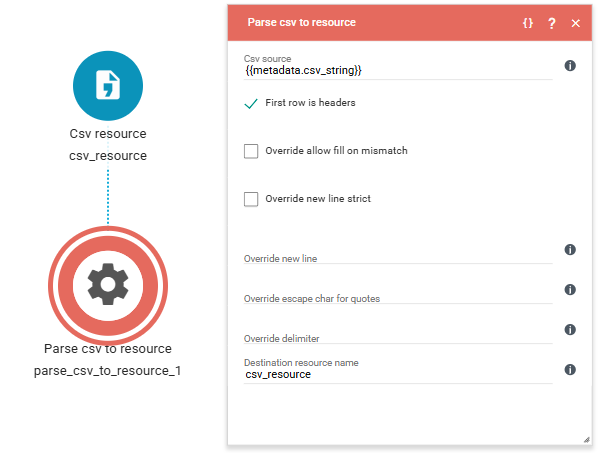
1. Csv Source (Input)
A value containing CSV-formatted text. This can be:
- A static CSV string
header1,header2 row1,row2 - A dynamic reference to a resource or metadata, for example:
{{incoming_message.body}}
2. Parse First Row as Headers (Checkbox)
Enable this option if the CSV contains a header row.
When enabled:
- The first row will be interpreted as column headers.
- Headers can be referenced by name in later expressions.
If disabled:
- All rows are treated strictly as data rows.
3. Override Allow Fill on Mismatch (Checkbox)
If enabled:
- Rows with fewer columns than expected will be automatically padded with empty values.
If disabled:
- The job will fail and throw an error if any row contains a mismatched number of columns.
Use this setting when working with inconsistent or partially structured CSV data.
4. Override New Line Strict (Checkbox)
When enabled:
- The override newline setting will only accept a single-character value.
This ensures strict parsing behavior when customizing row separation.
5. Override New Line
Allows you to specify a custom newline character instead of the default line break.
Use this if the CSV uses a non-standard row separator.
6. Override Escape Character for Quotes
Allows you to define a custom escape character for quoted values.
This is useful when:
- The CSV does not follow standard double-quote (
") escaping conventions. - The source system uses a different escape mechanism.
7. Override Delimiter
Allows you to define a custom field delimiter instead of the default comma (,).
Common alternatives include:
- Semicolon (
;) - Tab (
\t) - Pipe (
|)
8. Destination Resource Name (Output)
Defines the name of the CSV resource that will be created in the workflow context.
Choose a descriptive name to make downstream references clear and maintainable.
Accessing Data in a CSV Resource
The examples below assume that the data is saved in a resource called “csv”.
Headers
{{csv.headers}}Returns all headers.
{{csv.headers[0]}}Returns the header at index position 0.
{{csv.headers.count()}}Returns the total number of headers (columns).
Rows
{{csv.rows}}Returns all rows.
{{csv.rows[2]}}Returns the row at index position 2.
{{csv.rows[3].distinct()}}Returns distinct values from row at index position 3.
Get Column
{{csv.getcolumn(xx)}}Where xx can be either:
- The column index (e.g.,
0) - The header name (if headers are enabled), for example:
{{csv.getcolumn(firstname)}}For a CSV structured as:
firstname,lastname
John,Doe
Jane,Smith
This function returns all values from the first column.
Other uses
These functions can also be used on a single row by extracting a single row and writing it to a separate CSV resource, or by looping over them using For Each Resource, to find the single cell value.